In this article
- 01Let Customers Choose When They Receive or Use a Product
- 02What Is a Date and Time Picker for Shopify Products?
- 03Which Date and Time Picker Mode Should You Choose?
- 04How to Set Up a Date and Time Picker With Aris Product Options
- 055 Practical Date and Time Picker Configurations for Shopify Stores
- 06How to Manage Availability, Cutoff Times and Buffer Periods
- 07Common Date and Time Picker Mistakes to Avoid
- 08When Should You Use a Shopify Date and Time Picker?
- 09Frequently Asked Questions
- 10Add Scheduling Options to Your Shopify Products Right Now!
Let Customers Choose When They Receive or Use a Product
A Shopify date and time picker lets customers choose when they want a product delivered, picked up, rented, or used. With Aris Product Options, merchants can add a Datetime field to a product page and set it up for different booking needs. The Datetime 2.0 docs cover four modes: Date, Date Range, Time, and Date & Time. You can also set date limits, open hours, time slots, buffer times, cutoff rules, and timezone settings.
This guide covers Shopify date picker use cases for delivery dates, pickup windows, and Shopify product booking slots. Choose the mode that fits your store's delivery date, pickup window, or appointment flow. If your products need scheduling, the real question is not how to show a calendar. It is how to collect a date or time that your business can actually fulfil.
What Is a Date and Time Picker for Shopify Products?
For example, a bakery may ask for a cake delivery date. A rental store may need a start and end date. A salon may need an appointment date and a time slot.
A product options app can add a dedicated field to the product page so the customer can enter that info with the order. Aris Product Options includes a Datetime option type for this kind of scheduling data. Its Datetime 2.0 feature upgrade gives you four modes for different workflows.
Which Date and Time Picker Mode Should You Choose?
Datetime mode | What the customer selects | Example use case |
|---|---|---|
Date | One calendar date | Delivery date, gift delivery, birthday order |
Date Range | Start date and end date | Equipment rental, hotel stay, multi-day hire |
Time | A time slot for today | Same-day pickup or delivery |
Date & Time | A date followed by an available time slot | Salon appointment, consultation, service booking |
1. Date: Let Customers Choose a Delivery Date
Use Date when the customer only needs to select one calendar date.
This works well for stores that prepare products in advance and deliver them on a chosen day. Examples include cakes, flowers, personalized gifts, and event supplies.
You can set up:
- Date format, such as YYYY-MM-DD, DD-MM-YYYY, or MM-DD-YYYY.
- Minimum and maximum selectable dates.
- Weekdays to block.
- Specific dates or date ranges to block.
- Exception dates that stay open even on a blocked weekday.
- Minimum notice and maximum book-ahead time.
For example, a bakery may ask customers to order at least three days before delivery. Minimum notice helps stop customers from choosing a date that is too soon.
2. Date Range: Collect Start and End Dates
Use Date Range when a product or service is booked for more than one day.
- Equipment and tool rentals.
- Event furniture hire.
- Multi-day product rentals.
- Lodging or other date-based services.
You can set a minimum and maximum range length. For example, a rental store may require a booking of at least two days and allow up to fourteen days.
One important rule: a customer may choose a range that crosses a blocked day, but cannot start or end the booking on a blocked day. Make sure you test this against your store's real rental rules before you publish the setup.
3. Time: Offer Daily Time Slots
Use Time when customers need to choose a time slot for the current day. Examples include same-day pickup windows or delivery windows during business hours.
You can set up:
- 12-hour or 24-hour time format.
- The same open hours every day.
- Different weekday and weekend hours.
- Custom availability for each day of the week.
- Fixed session length to build time slots.
- Buffer time before and after a session.
- Same-day and next-day order cutoffs.
For example, a store open from 09:00 to 18:00 could use 30-minute sessions to create slots like 09:00--09:30 and 09:30--10:00. If session length is left blank, the docs say customers can choose any minute within the open hours.
4. Date & Time: Combine a Date With Available Time Slots
Use Date & Time when customers must select both a date and a specific time.
- Salon appointments.
- Consultations.
- Scheduled services.
- Products that need a set delivery or pickup time.
The flow is date first, time second. After the customer picks a date, the time slots for that date load. Dates with no open slots, or dates past the cutoff, are greyed out in the calendar.
How to Set Up a Date and Time Picker With Aris Product Options
You can easily create a Datetime field inside an Aris Option Set and apply that set to the products that need scheduling.
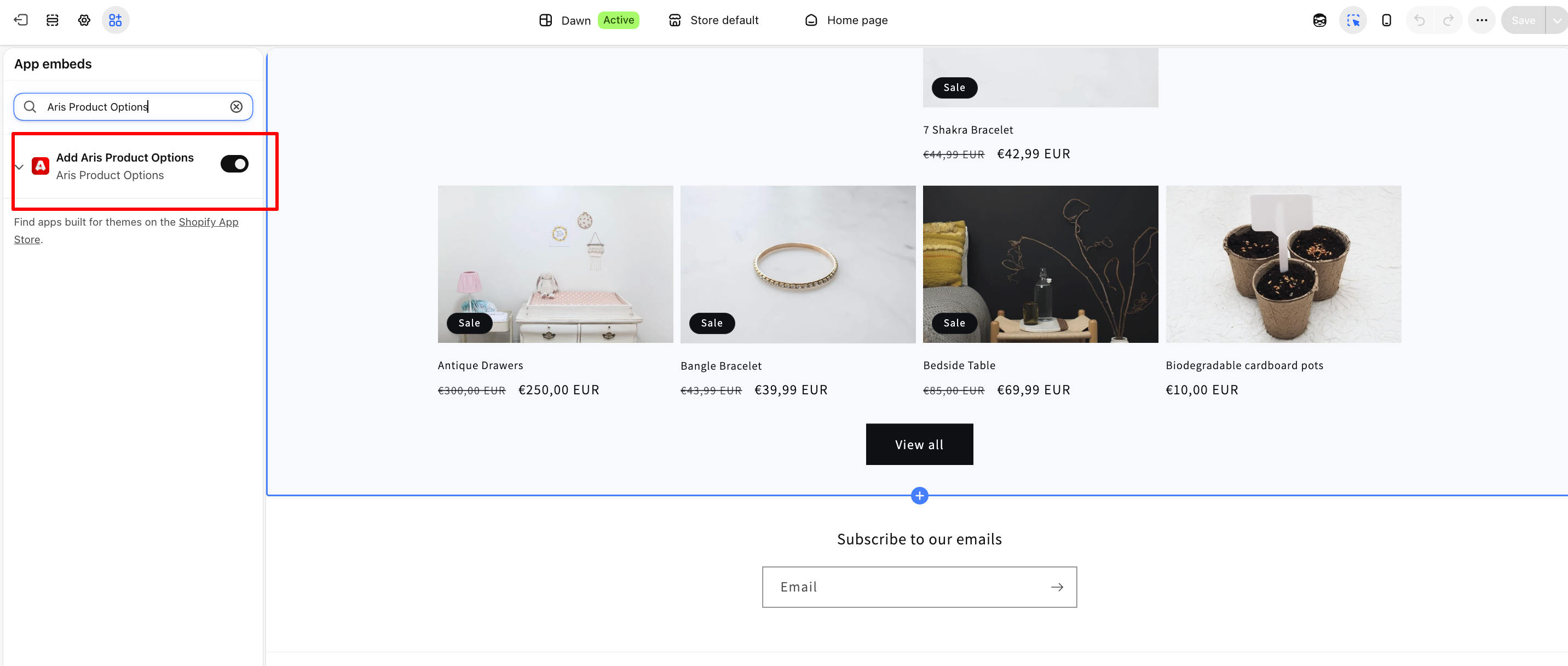
Step 1: Activate Aris in Your Shopify Theme
- 1.Open Shopify Admin.
- 2.Go to Online Store → Themes.
- 3.Select Edit theme.
- 4.Open App embeds.
- 5.Enable Add Aris Options.
- 6.Save your theme.
The app embed must be active for Aris options to appear on product pages.
Step 2: Create an Option Set
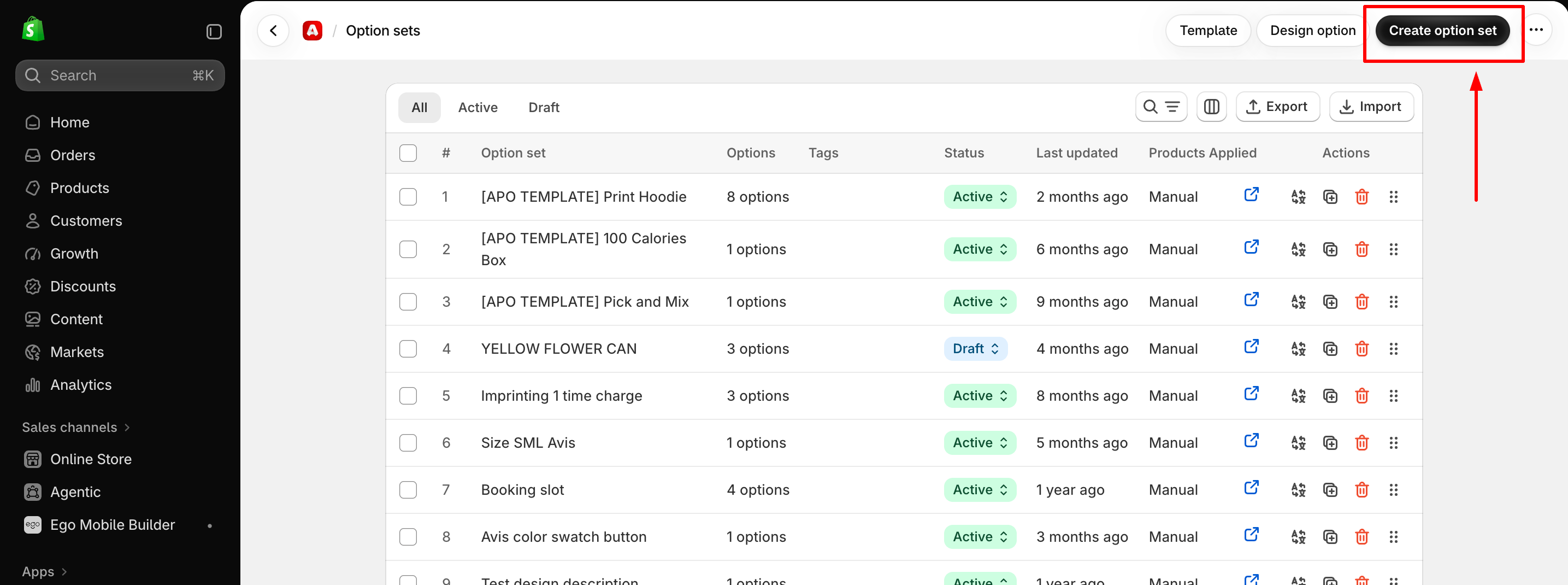
- 1.Open Aris Product Options in Shopify Admin.
- 2.Go to the Aris Option tab.
- 3.Select Create Option Set.
- 4.Give the Option Set a clear name, such as Scheduled Delivery.
- 5.Select Add Option.
An Option Set groups the custom fields that you want to show on selected products.
Step 3: Add a Datetime Option
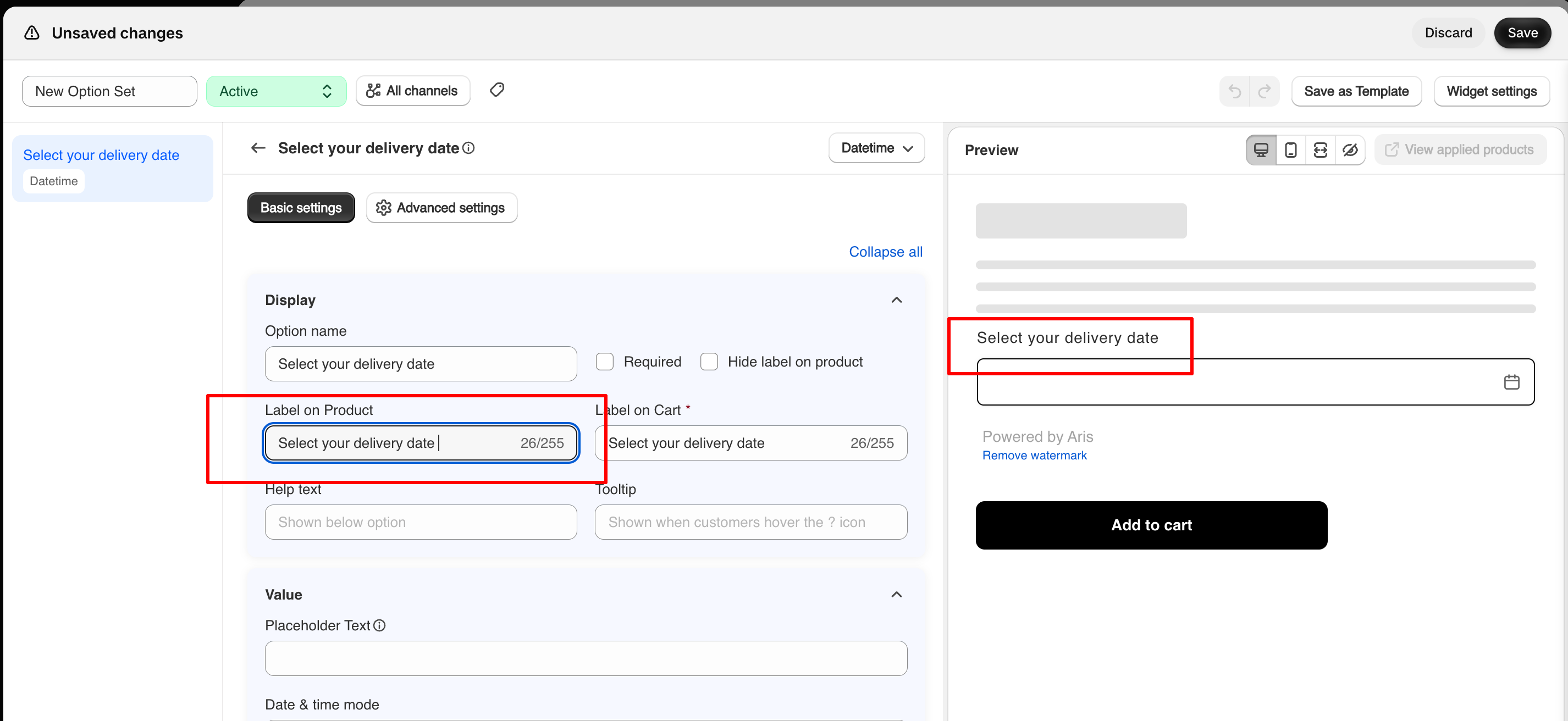
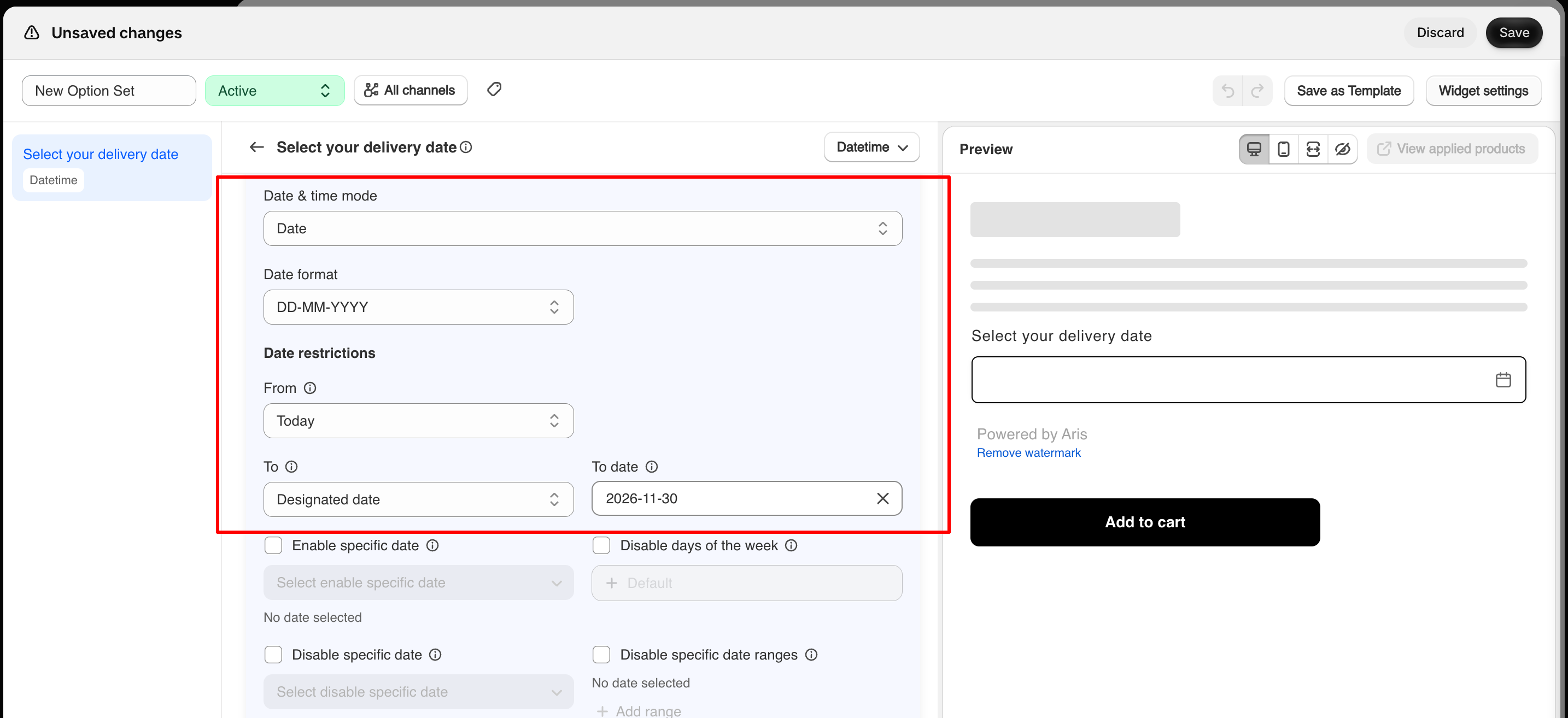
- 1.Choose the Datetime option type.
- 2.Add a clear product page label, such as Select your delivery date or Choose an appointment time.
- 3.Select the right Datetime mode.
- 4.Set the available date or time rules.
- 5.Review the customer-facing instructions and save your settings.
Step 4: Configure Availability Rules
Set the dates and times customers can choose.
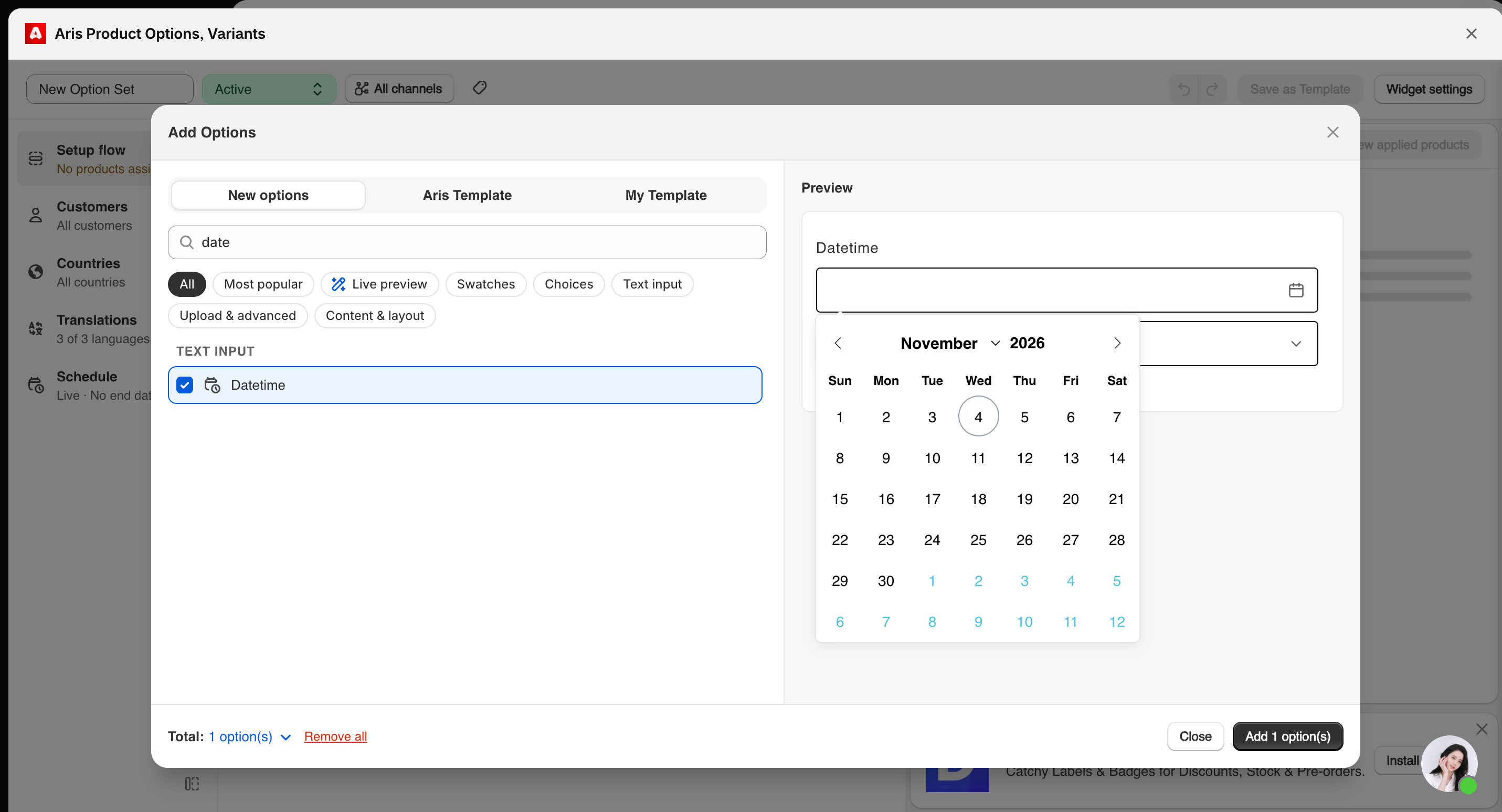
- Minimum and maximum dates.
- Blocked weekdays.
- Blocked dates and date ranges.
- Exception dates.
- Minimum scheduling notice.
- Maximum book-ahead period.
- Open hours and session length.
- Buffer times and cutoff times.
Do not turn on every restriction by default and use the rules that match your actual fulfilment schedule.
Step 5: Set Timezone and Store-Wide Rules
Open the Datetime settings and check the store timezone.
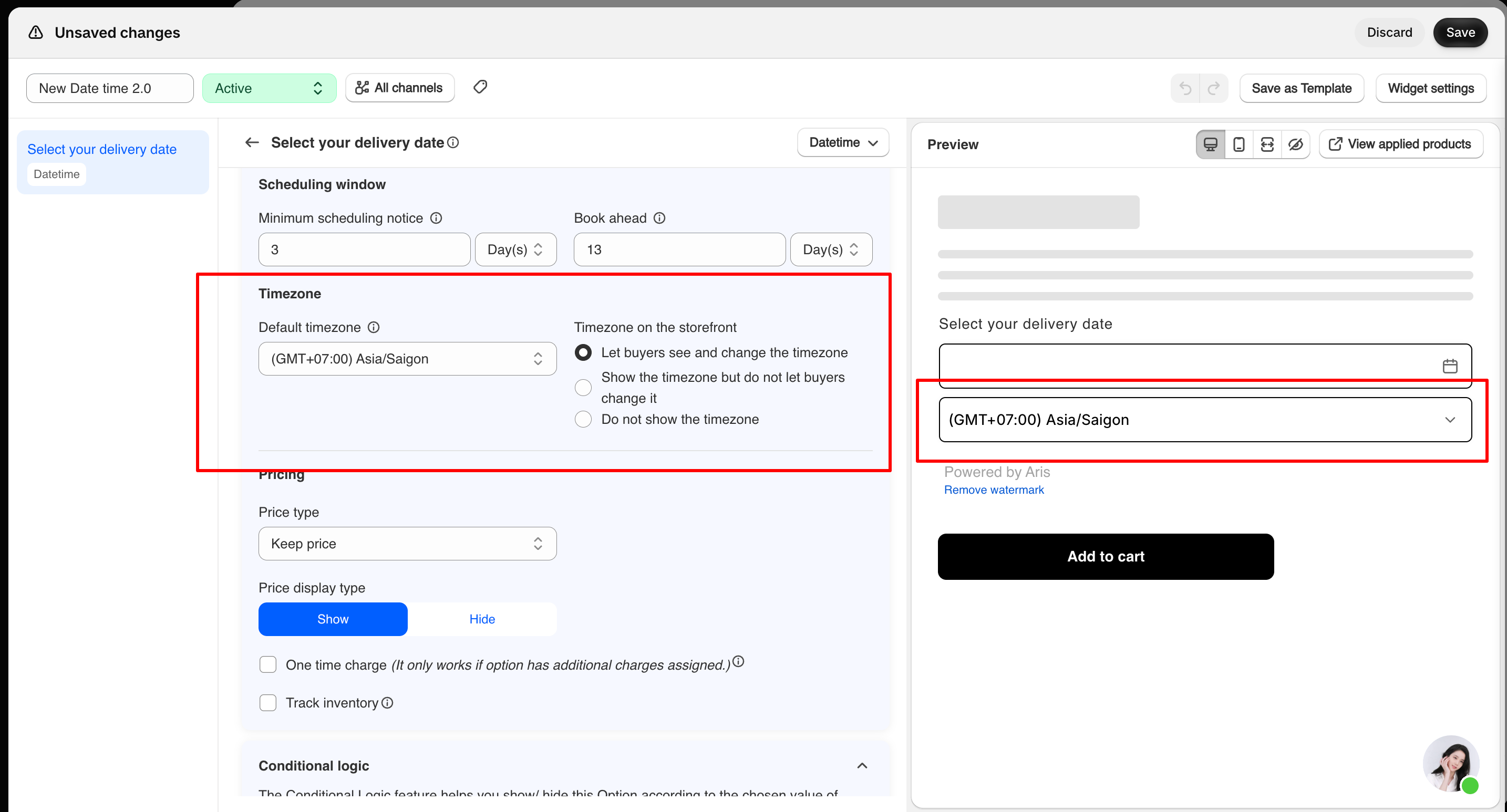
- First day of the week.
- Default hour format.
- Global buffer time.
- Store-wide break times.
- Blocked dates and public holidays.
- Default cutoff time.
- Default timezone.
Central rules can help keep scheduling settings the same across more than one product. Make sure you check how global and product-level settings work together in your app version before you apply them store-wide.
Step 6: Preview and Test the Customer Journey
- The correct date or time mode appears.
- Unavailable dates cannot be chosen.
- Cutoff rules work as expected.
- Time slots match your open hours.
- Buffer times show up in availability.
- The timezone is clear to customers.
- The selected value appears where customers review their order.
5 Practical Date and Time Picker Configurations for Shopify Stores
These examples turn the Datetime 2.0 settings into common merchant workflows.
Configuration 1: Schedule Cake or Flower Deliveries
A bakery or flower shop may want customers to choose a delivery date while stopping last-minute orders.
- Minimum notice: 3 days.
- Block the store's regular closure days.
- Block public holidays when the business cannot fulfil orders.
- Add exception dates for special opening days.
- Set a maximum book-ahead period if the store only plans deliveries a few weeks ahead.
Configuration 2: Offer Same-Day Pickup Windows
A store that offers same-day pickup may want customers to choose a collection time during open hours.
- Open hours: 09:00--18:00.
- Session length: 30 minutes.
- Add buffer time if staff need time to prepare orders.
- Set a same-day cutoff to stop late requests.
- Use different hours for weekdays and weekends if needed.
Configuration 3: Let Customers Book Appointments
A salon, studio, or consultation-based business may need customers to choose both a date and a time.
- Set the store timezone.
- Define open weekdays and hours.
- Create time slots with a fixed session length.
- Add buffer time between appointments.
- Set a booking cutoff to stop requests after the business deadline.
- Block holidays and unavailable dates.
Important: A date and time picker collects the customer's requested appointment time. Do not describe it as a full staff calendar, automatic appointment confirmation tool, or resource management system unless those features have been checked.
Configuration 4: Collect Rental Start and End Dates
A business that rents equipment, event furniture, or other products may need both a start date and an end date.
- Minimum range length: 2 days.
- Maximum range length: 14 days.
- Block dates where a rental cannot start or end.
- Test bookings that cross a blocked day or holiday.
Important: Confirm how rental stock, overlapping reservations, deposits, and return processing work on their own. The date picker alone should not be shown as a full inventory reservation system.
Configuration 5: Add Lead Time for Made-to-Order Products
Made-to-order products often need prep time before they can be sent or collected.
- Set a minimum notice that matches the prep period.
- Block non-working days and planned production closures.
- Set a maximum book-ahead window if the store needs one.
- Add clear customer-facing text that explains the prep period.
Important: A minimum notice is a scheduling rule, not a production planning engine. It does not by itself calculate workload, material availability, staff capacity, or a guaranteed dispatch date.
How to Manage Availability, Cutoff Times and Buffer Periods
Minimum Notice vs. Book-Ahead Limit
Setting | What it controls | Example |
|---|---|---|
Minimum scheduling notice | How soon a customer can book | Require at least 3 days' notice |
Book-ahead limit | How far into the future a customer can book | Allow bookings up to 30 days ahead |
Disabled Dates and Exception Dates
Exception dates add flexibility. For example, if Sunday is usually blocked but the store opens for a holiday promo, an exception date can make that Sunday selectable.
Session Length and Buffer Time
Session length decides how time slots are built. A 30-minute session creates fixed half-hour slots during the open hours you set.
Buffer time adds prep or rest time before or after a session. A service provider may use a buffer to prepare a room, clean equipment, or get ready for the next appointment.
Same-Day and Next-Day Cutoffs
- Same-day cutoff: stop accepting today's orders after 14:00.
- Next-day cutoff: require tomorrow's booking to be placed before 18:00 today.
Common Date and Time Picker Mistakes to Avoid
When Should You Use a Shopify Date and Time Picker?
- Scheduled delivery or pickup.
- Personalized products that need advance prep.
- Rental products with start and end dates.
- Appointments and consultations.
- Products or services with set open hours.
- Real-time inventory reservation across overlapping bookings.
- Staff or room assignment.
- Automatic appointment confirmation and reminders.
- Carrier integration or live shipping-date calculation.
- Production capacity planning or guaranteed dispatch estimates.
Frequently Asked Questions
Can I add a date picker to a Shopify product page?
Yes. A product options app such as Aris Product Options can add a Datetime field to a Shopify product page. You can set it up for a single date, a date range, a time slot, or a combined date-and-time selection.
Can customers choose a delivery date on Shopify?
Yes. Use Date mode to collect one delivery date. You can set minimum and maximum selectable dates, blocked weekdays, blocked dates, exception dates, and minimum scheduling notice.
Can I let customers choose a specific delivery or appointment time?
Yes. The Datetime 2.0 docs describe Time and Date & Time modes.
Time is for picking a time slot for today. Date & Time lets customers choose a date and then pick an open time slot for that date.
Can I prevent customers from booking too late?
Yes. You can set minimum scheduling notice and cutoff rules. These settings control how soon customers can book and when same-day or next-day requests stop being accepted.
Does a date picker automatically manage delivery or appointment capacity?
Not by itself. A date and time picker collects customer choices based on the rules you set. Inventory reservation, staff scheduling, carrier availability, and production capacity should be checked as separate features.
Add Scheduling Options to Your Shopify Products Right Now!
Explore Aris Product Options and build a date and time selection flow that matches your store's real operating rules.
Category
Product Customization