In this article
- 01One product page, two types of choices
- 02Shopify variants vs. Aris custom options: What's the difference?
- 03How Aris works with Shopify's existing variants
- 04When should you use Shopify variants, and when should you use Aris custom options?
- 05How to display both on the same product page
- 06What should merchants check before publishing?
- 07Common examples
- 08Frequently asked questions
- 09Manage product choices with the right structure
One product page, two types of choices
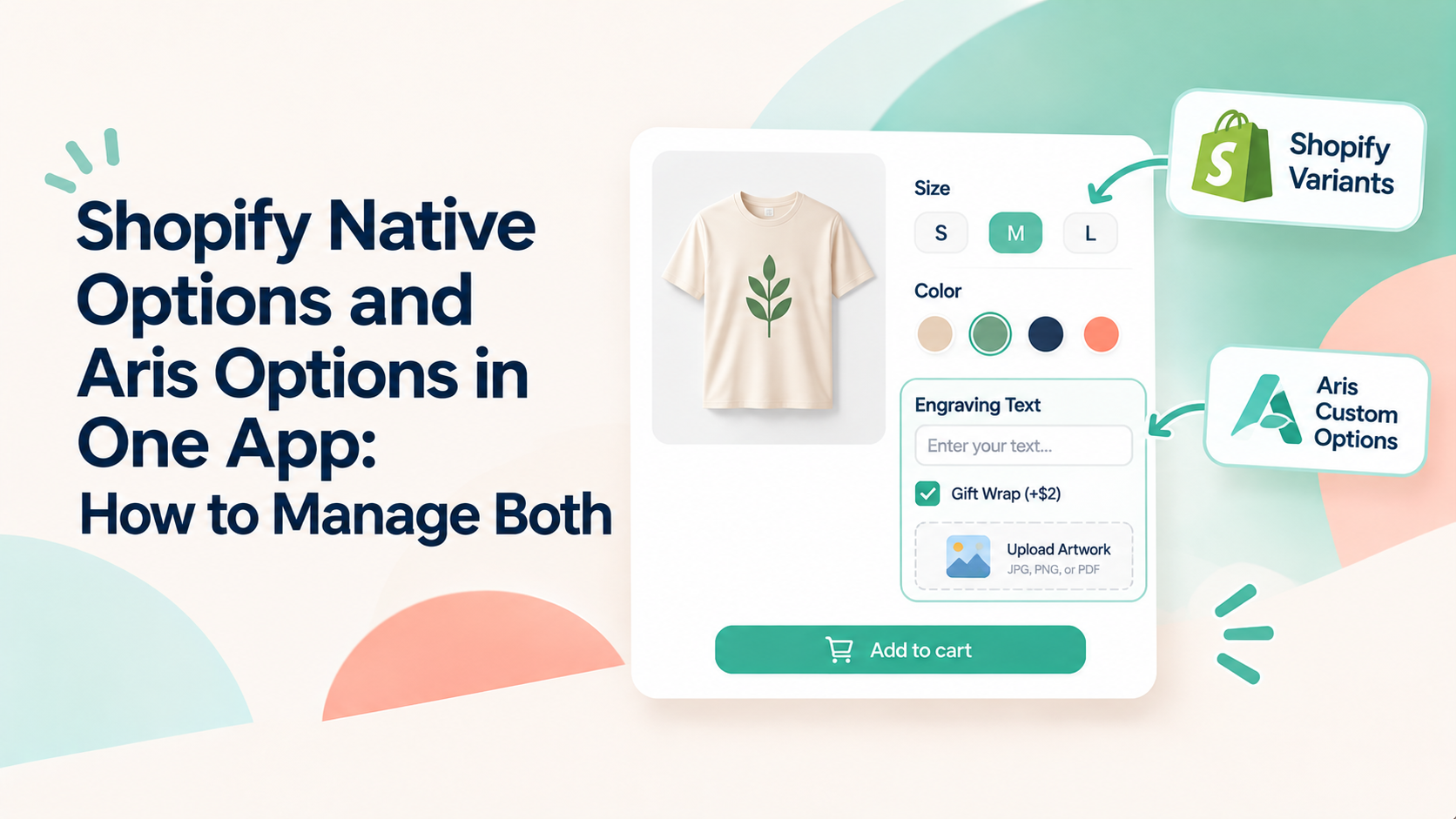
These are two different types of product choices:
Shopify variants define which version of a product the customer is buying, such as size or color.
Custom product options collect extra information or preferences, such as text, file uploads, or paid add-ons.
Shopify variants vs. Aris custom options: What's the difference?
Aris custom options are additional fields created through the Aris Option tab. They let customers provide information or select extras that don't need to become a new Shopify variant—for example, engraving text, a reference image, gift wrapping, or an optional paid upgrade.
Shopify variants | Aris custom options | |
|---|---|---|
Main purpose | Define the product version | Collect extra details or preferences |
Examples | Size, color, material | Engraving text, file upload, gift wrap |
Where they're created | Shopify Admin | Aris Option tab |
Product data | Native Shopify variant | Custom option data |
Best for | Choices that affect the actual variant | Personalization and additional requirements |
How Aris works with Shopify's existing variants
- Button
- Dropdown menu
- Color or image swatch
- Swatch in button
- Swatch in dropdown menu
- Swatch with price
How to customize Shopify variant display in Aris
Select products. Open the Shopify Option customization area and select the products whose variant display you want to update. Aris documentation currently describes selecting up to 100 products.
Sync Shopify options. Sync the existing Shopify options so they appear in the customization list. Note that applying Aris styling overrides the existing option styling for the selected products.
Choose a display style. Select the preferred style for each Shopify option, such as buttons, dropdowns, or swatches.
Configure swatches if needed. For color or image swatches, choose the existing Shopify variant image or upload custom colors and images where supported.
Save and preview. Save your settings and check the product page. Theme-specific adjustments may be needed.
When should you use Shopify variants, and when should you use Aris custom options?
Use Shopify variants when the choice defines the product itself
Examples include:
A T-shirt's size and color, where each combination has its own inventory.
A furniture product available in different materials, with different prices or SKUs.
A product with color-specific images and stock availability.
Use Aris custom options when the choice adds information or personalization
Examples include:
Engraving: Customers enter a name or short message.
Artwork upload: Customers attach a logo, photo, or reference file.
Gift wrapping: Customers select an optional wrapping service.
Additional upgrades: Customers choose paid extras without creating a separate Shopify variant for every possible combination.
Use both when a product needs both types of choices
Consider a personalized leather wallet:
Customer choice | Recommended setup | Why |
|---|---|---|
Leather color | Shopify variant | Defines the product version |
Wallet size | Shopify variant | May affect SKU or inventory |
Engraving text | Aris custom option | Collects personalization details |
Gift box | Aris custom option | Offers an optional extra |
Reference image | Aris custom option | Collects a file from the customer |
How to display both on the same product page
A practical setup could look like this:
Create the native variants in Shopify Admin. Add the product options that define the actual versions you sell, such as size and color.
Style those variants in Aris. Open the Shopify Option tab, sync the relevant products, and choose how the native options should appear.
Create an Aris Option Set. Add the extra fields customers need, such as engraving text, file upload, or gift wrapping.
Assign the custom option set to the relevant product. Check that the fields appear alongside the Shopify variant selectors.
Preview the complete product page. Test different variant selections and custom inputs before publishing the setup.
What should merchants check before publishing?
Before making the setup live, test the complete purchase journey—not just whether the fields look correct.
Variant behavior: Confirm that changing size or color selects the correct Shopify variant and corresponding product details.
Custom input behavior: Enter text, select add-ons, and upload a test file if your product uses file uploads.
Price changes: Check that variant prices and any configured Aris add-on charges are reflected as expected.
Order details: Place a test order and verify that the selected variant and submitted custom information are available where your team needs them.
Common examples
- Apparel: Shopify variants for size and color; Aris options for printed names or artwork uploads.
- Jewelry: Shopify variants for metal type or ring size; Aris options for engraving and gift messages.
- Furniture: Shopify variants for dimensions or material; Aris options for assembly preferences or additional services.
- Gifts: Shopify variants for product style; Aris options for gift wrapping, personal notes, or uploaded photos.
Frequently asked questions
Does Aris replace Shopify's native variants?
Can I use Shopify variants and Aris custom options on the same product?
Can I display Shopify variants as color or image swatches?
Do Aris custom options count as Shopify variants?
Manage product choices with the right structure
Keep size, color, and other product-defining choices in Shopify. Use Aris to style those native selectors and collect additional information through custom fields. When a product needs both, you can bring the two together on one product page - without treating every personalization request as another Shopify variant.
Explore Aris Product Options or visit the Aris Help Center to learn more about setting up both types of options.
Category
Variant Display